create a QR code you can edit after printing · 9 min read · Updated 2026-08-28
How to Create a QR Code You Can Edit After Printing
Create a QR code that still works when the URL changes. Use a dynamic short link so posters, packs, and menus never need a reprint.
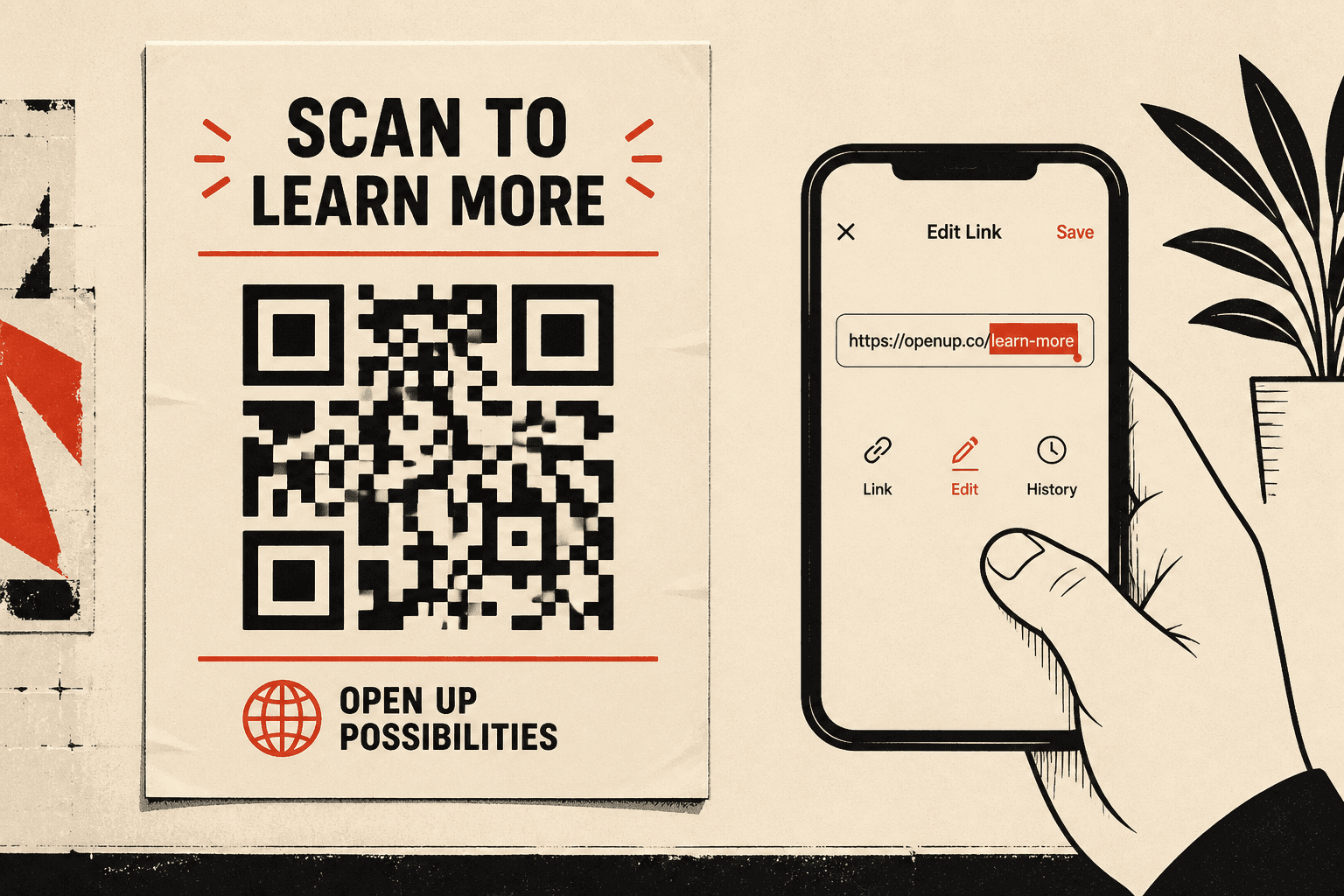
Most people create a QR code by encoding a website URL directly into the image. That is fine until the campaign page moves, the menu PDF updates, or the product page 404s. Then the poster is wrong and you reprint.
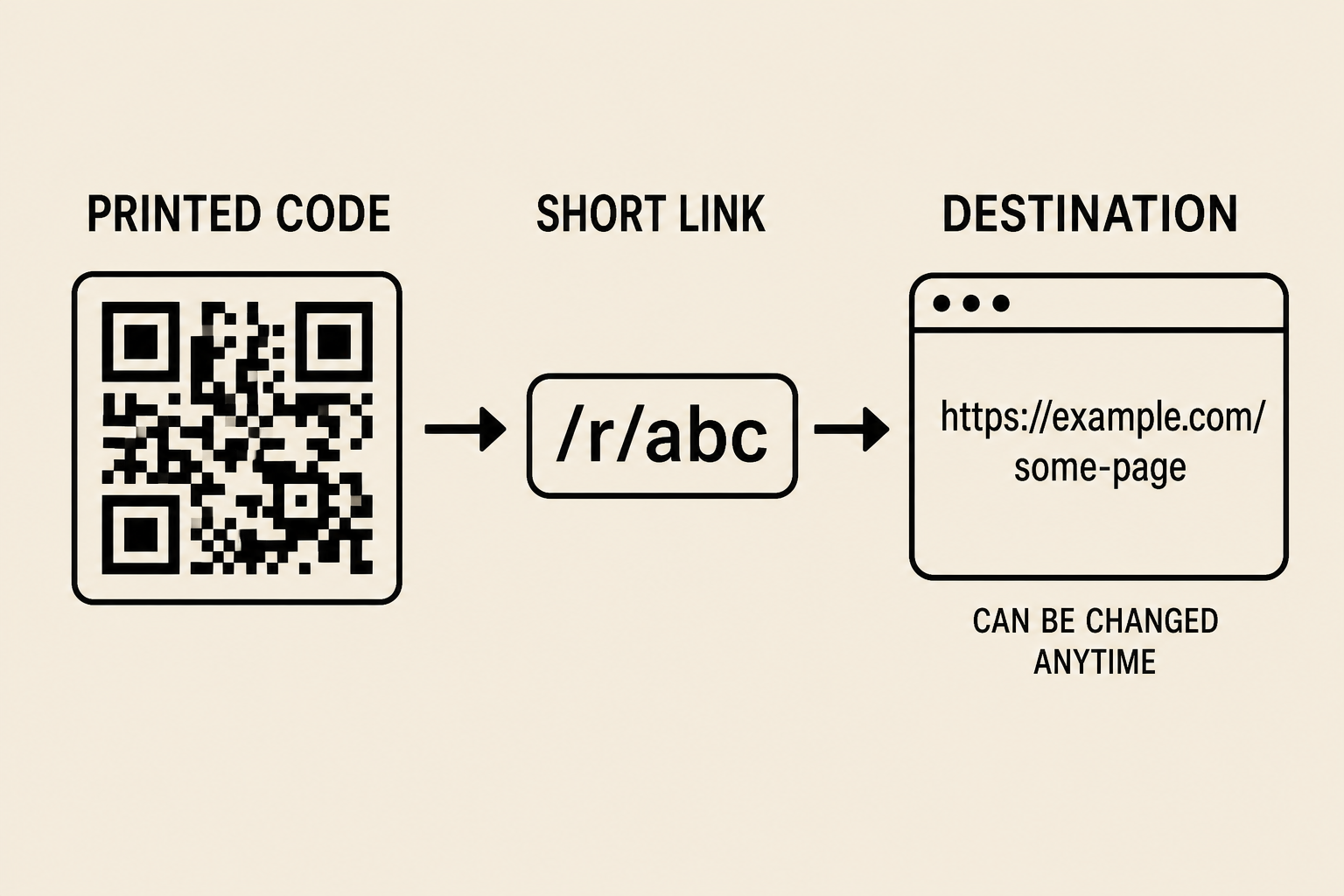
If you need a code that survives a URL change, do not put the final URL in the pixels. Put a permanent short link in the pixels. Edit the destination behind that link. That is how you create a QR code you can edit after printing.
Static QR codes cannot be edited
A static generator writes the destination into the pattern. Phones decode that string and open it. There is no server in the middle, so there is nothing to update. If you printed 2,000 boxes, those boxes still open the old URL.
Static codes are useful for Wi‑Fi passwords, one-off PDFs, and anything that will never change. They are the wrong default for packaging, menus, business cards, and ads.
How to create a QR code you can edit
- Go to a dynamic QR code generator and paste the URL you want scanners to open today.
- Create the QR code. Confirm it encodes a short path on the generator’s domain, not your long campaign URL.
- Download a print-ready PNG. Keep high contrast and a quiet zone around the square.
- Print a test. Scan it with more than one phone before you send a file to a printer.
- When the destination changes, edit the URL in the dashboard. Do not generate a new image.
On Create QR Codes the landing page does this in the browser. Paste a URL, create the QR and short link, then download. Download asks for email. The code stays locked until you confirm that email, which is how the code gets attached to your account so you can edit it later.
What to print so it still scans later
- Use a dynamic code so the image never has to change.
- Print dark modules on a light background. Avoid logos that eat the quiet zone.
- Size the code for distance. See the QR code size guide for print.
- Do not stretch the square. Distortion is a common reason codes fail in the wild.
When an editable QR code is worth it
| Use case | Why the URL will change | Use dynamic? |
|---|---|---|
| Restaurant menu | Seasonal dishes, sold-out items, new PDF | Yes |
| Product packaging | New instructions, recall, campaign swap | Yes |
| Business card | New site, new calendar link, role change | Yes |
| Event poster | Time change, rain venue, replay page | Yes |
| Wi‑Fi for guests | Password rotation, new network name | Usually static or a dynamic page |
Mistakes that lock you into a reprint
- Using a free static generator because it was first in search results.
- Encoding a link shortener you do not own. If that shortener dies, the print dies.
- Printing before you scan a proof on an older phone in bad light.
- Picking a generator that expires free codes after 30 days. The poster outlives the trial.
If a printed code already failed, read why QR codes stop working. For the next run, create a QR code that you can edit.
FAQ
Can I edit a QR code after it is printed?
Only if it is dynamic. The printed image must point at a short link you control. Change that link and scanners go to the new page. A static QR encodes the final URL forever.
Do I need an app to create an editable QR code?
No. Create a QR code in the browser. Paste a URL, generate the image and short link, then confirm email to unlock download.
Will scans still work if I change the URL?
Yes. Scanners still read the same short link. Your server redirects them to the new destination and can count the scan.